Reviewing and approving what the AI drafted
WispBooks drafts. You approve. Nothing posts to your ledger from a model's opinion alone.
Where the queue lives
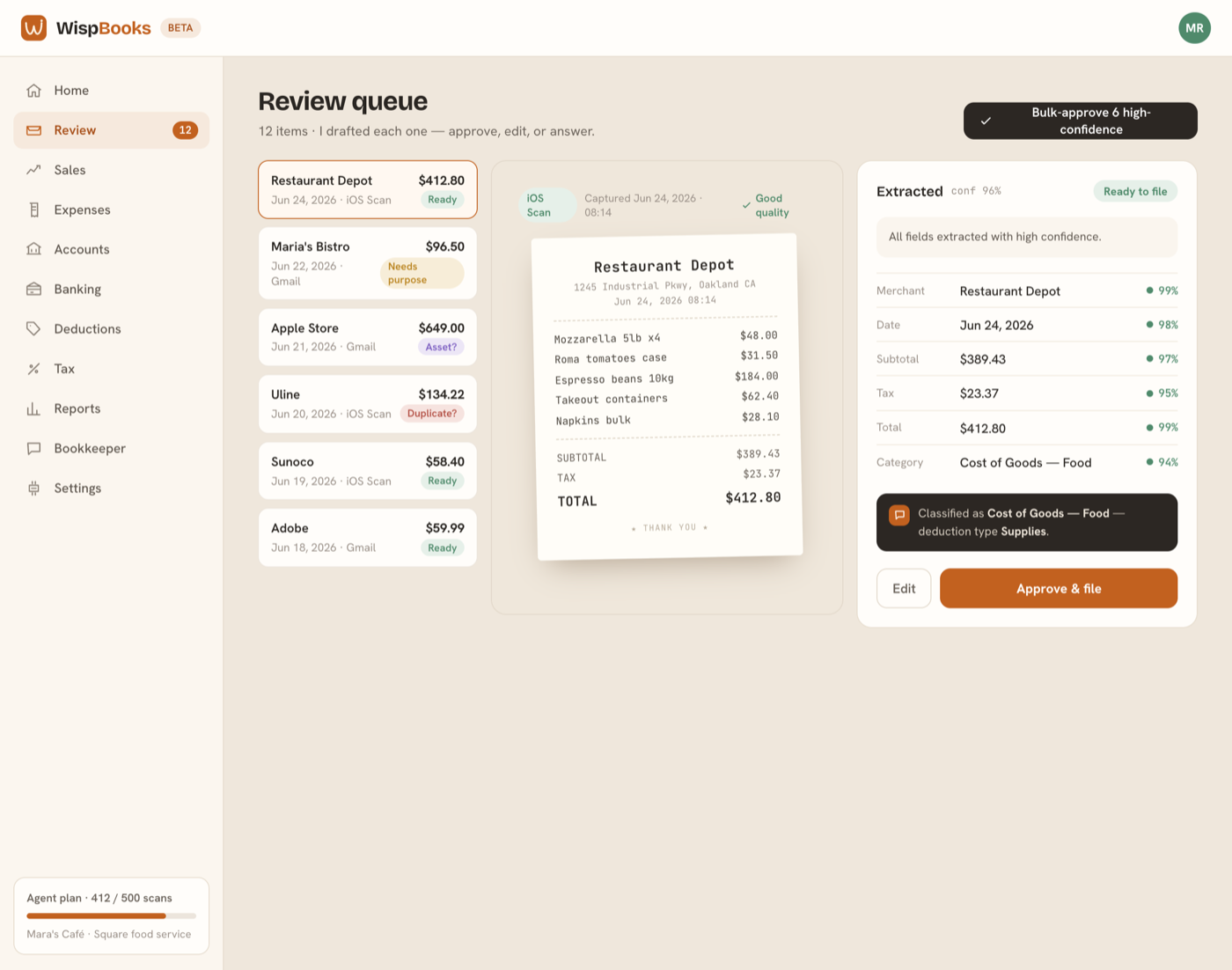
Inbox is everything asking for your attention in one list. Spending → Receipts is the receipt queue specifically: the image on one side, the extracted fields on the other, and one row per capture. Home shows the same counts as pills you can click straight into.
Reading a confidence score
Every extracted value carries a percentage and a short reason. A high score means the value was printed clearly and matched the arithmetic; a low one means the text was ambiguous or the category could go two ways. Treat it as "how much should I look at this", not as a probability of being right.
The checks that aren't AI
Arithmetic, dates, tax totals, and double-entry balance are verified by ordinary deterministic code, not by the model. If the line items don't sum to the total, or the date is implausible, the item is held for review no matter how confident the extraction was. An entry that doesn't balance cannot post at all.
When you'll be asked a question
WispBooks only asks when the answer changes your books. There are three:
- Needs purpose — a meal. Business meals are generally half deductible and need a recorded purpose, so we ask who and why instead of guessing.
- Asset? — the total is large and the item looks durable. Expense it, or capitalize it to Equipment and depreciate it.
- Duplicate? — this looks like a receipt you already have from the same day. It can't be approved until you settle it: Keep both if they really are two purchases, otherwise delete the copy you don't want. (Merging a pair into one entry isn't built yet.)
Editing before you approve
Any field can be corrected: merchant, date, amounts, category, and what paid for it — a business card, the bank account, the cash drawer, or accounts payable. Your correction is recorded as yours, with a timestamp. Approving posts a balanced journal entry with the receipt attached to it.
What files itself
Scans from the iOS app file themselves once they're read and nothing needs deciding — that's the point of scanning at the counter. Everything else waits for a person. You can change how much files itself under Settings → General → AI policies, and the audit log records what posted automatically just as it records what you approved.
Ask instead of hunting. The Bookkeeper screen answers questions about your own books — "what needs my attention", "why is this in Supplies" — and can suggest a fix you either accept or don't.