Connecting your bank with Plaid
The bank feed tells you what actually left the account. Pairing it with receipts and Square is what turns a pile of charges into books that tie.
Linking an institution
From Banking or Settings → General → Connections, choose Connect bank, pick your institution, and sign in through Plaid's screen. Your bank credentials go to Plaid, not to us — WispBooks never sees them. Then select which accounts to link: business checking, savings, and cards are all useful; personal accounts are not. You can add a second bank later from the same place.
Reading the feed
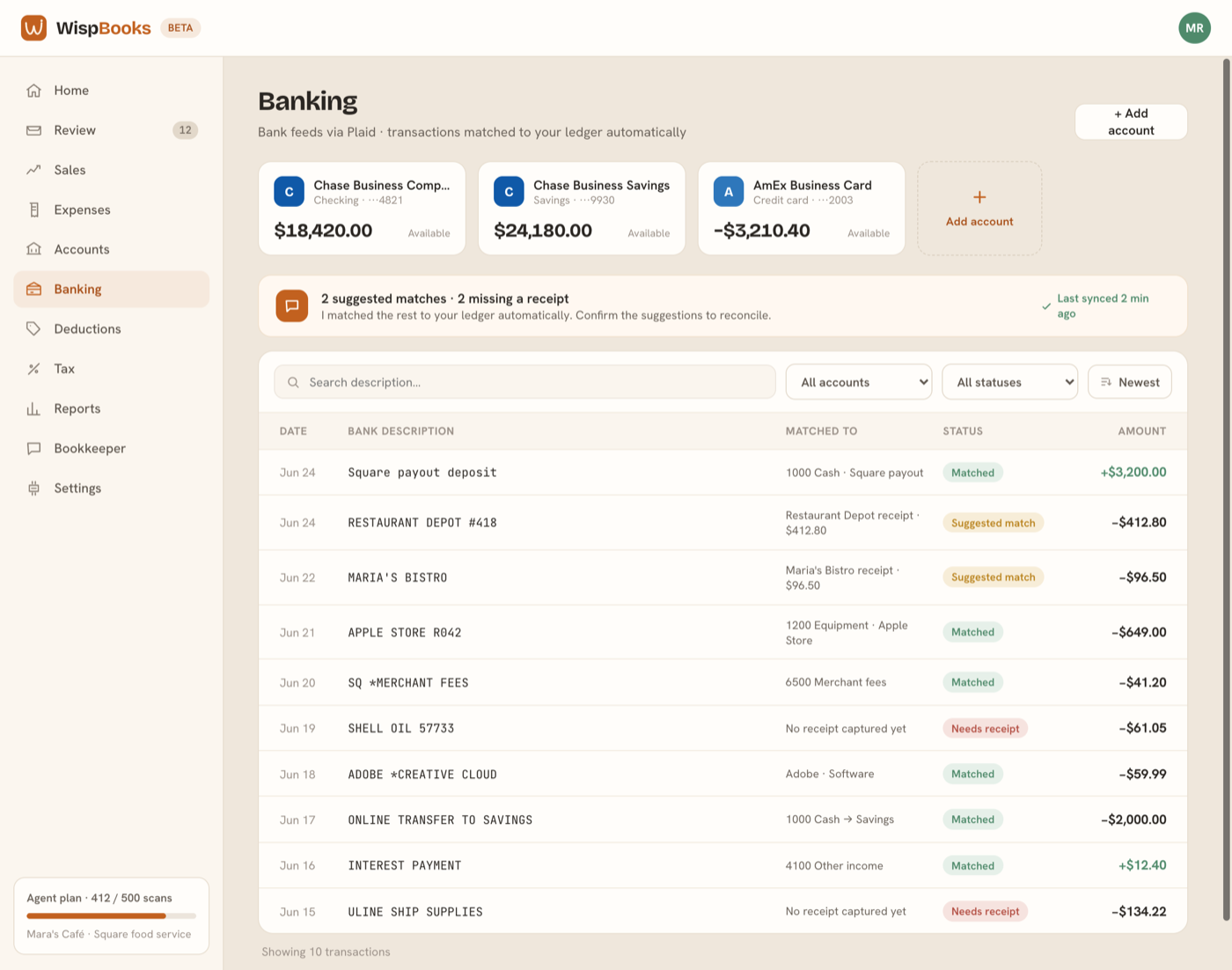
Every bank line carries a status:
- Matched — already tied to a ledger entry: a receipt you captured, or a Square payout that explains the deposit.
- Suggested match — we think we know what this is and want one tap of confirmation. Suggestions come from a matching pass and from your own rules ("Rule: UBER → Travel").
- Needs review — we have the charge and nothing that explains it yet.
- Ignored — deliberately set aside; it stays visible and can be put back.
Clearing a line
A line needs one decision: which account it belongs to. The Category or account picker lists your whole chart in two groups — Category for what the money was for, and Account for moving money between accounts you own. Pick one and WispBooks posts the right entry; you never choose between a "categorize" and a "transfer" verb, because the account you picked already answers that.
Alongside it: Confirm accepts a suggestion as-is, Ignore sets a line aside, and Reset to needs review undoes any of it. Nothing here is one-way.
Reconcile is the same work as a focused queue — one line at a time, keyboard-driven, with the suggestion and the reasons for it beside the line.
Rules
When you categorize a merchant, WispBooks offers to remember it: "always file COSTCO as Supplies". Accept, and future lines from that merchant arrive already suggested — or already filed, if you leave the rule set to apply automatically. Rules live in Settings → Rules, where you can edit the conditions, turn auto-apply off, or delete one. A new rule is also applied backwards across the lines you already have.
Read-only, always
The connection can read balances and transactions. It cannot move money, pay anyone, or change your account. To disconnect a bank, email support@wispbooks.com — we remove the connection at Plaid, delete the stored access token, and stop syncing. There is no self-serve disconnect button yet, deliberately: unlinking a feed is a decision we'd rather confirm with you than let a stray click make.
If a feed stops updating
Banks periodically require re-authorization, usually after a password change. When that happens the account shows a reconnect prompt on the Banking screen; signing in again backfills anything missed.